Write your verse over the instrumental
A Lyrics bit keeps your words and the instrumental together. Link the instrumental once, and it plays right next to your lyrics while you write: on your computer, or on your phone with the instrumental pinned at the top while you type. The bit counts your lines and sections, and saves as you type.
What you need
Any plan · your instrumental as a Sample in Bits, or a track you can open in SoundisiaK Studio
Steps
-
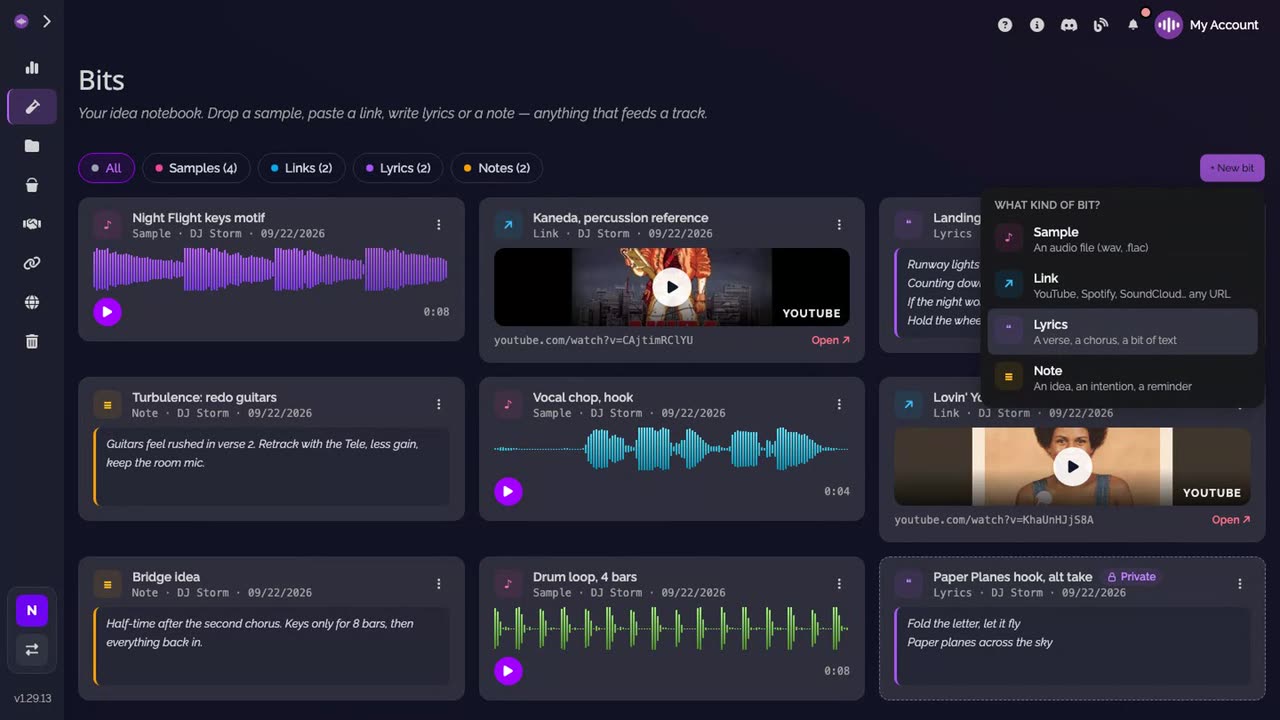
Add a Lyrics bit. In the Bits section, click New bit, and pick Lyrics.
-
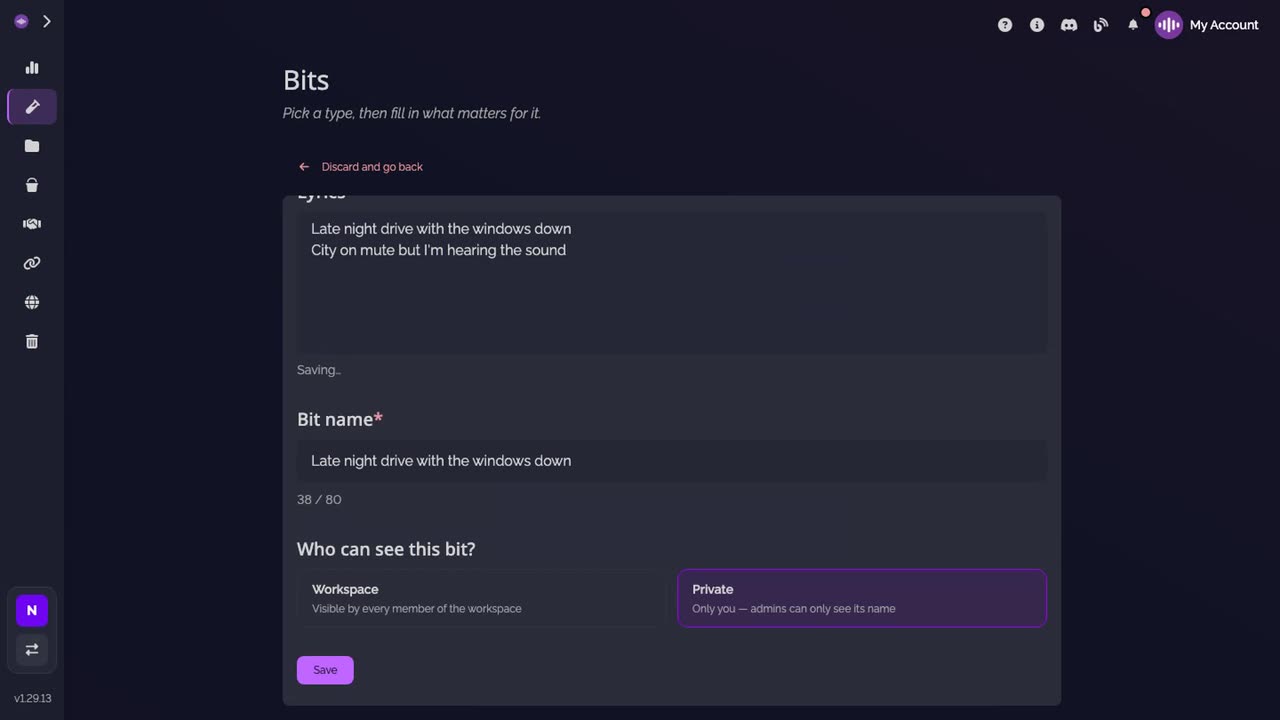
Write your first lines. The bit takes its name from the first one: change it if you like. It is Private, only you see it, until you share it. Click Save, then open the bit from the Bits section.
-
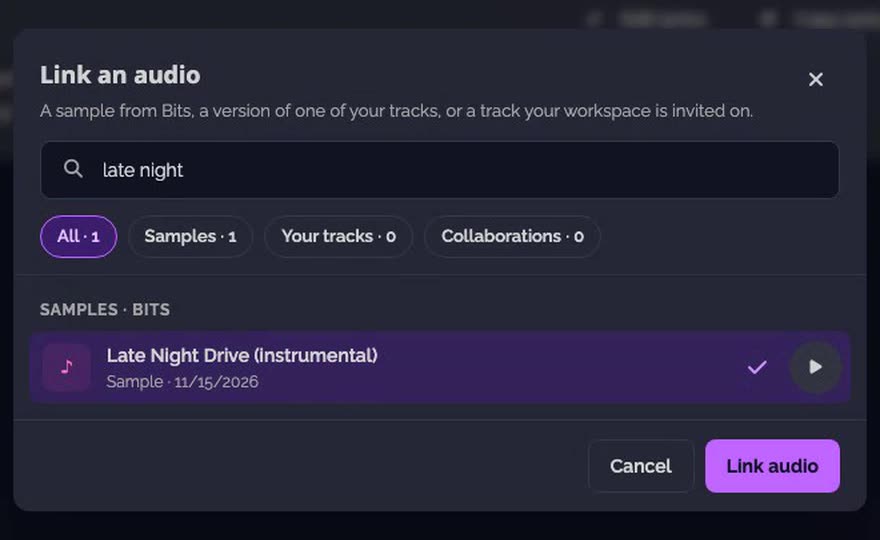
Link the instrumental. On the bit's page, under Audio, click Search samples and tracks. Find your instrumental, hear it with ▶, then click Link audio.
-
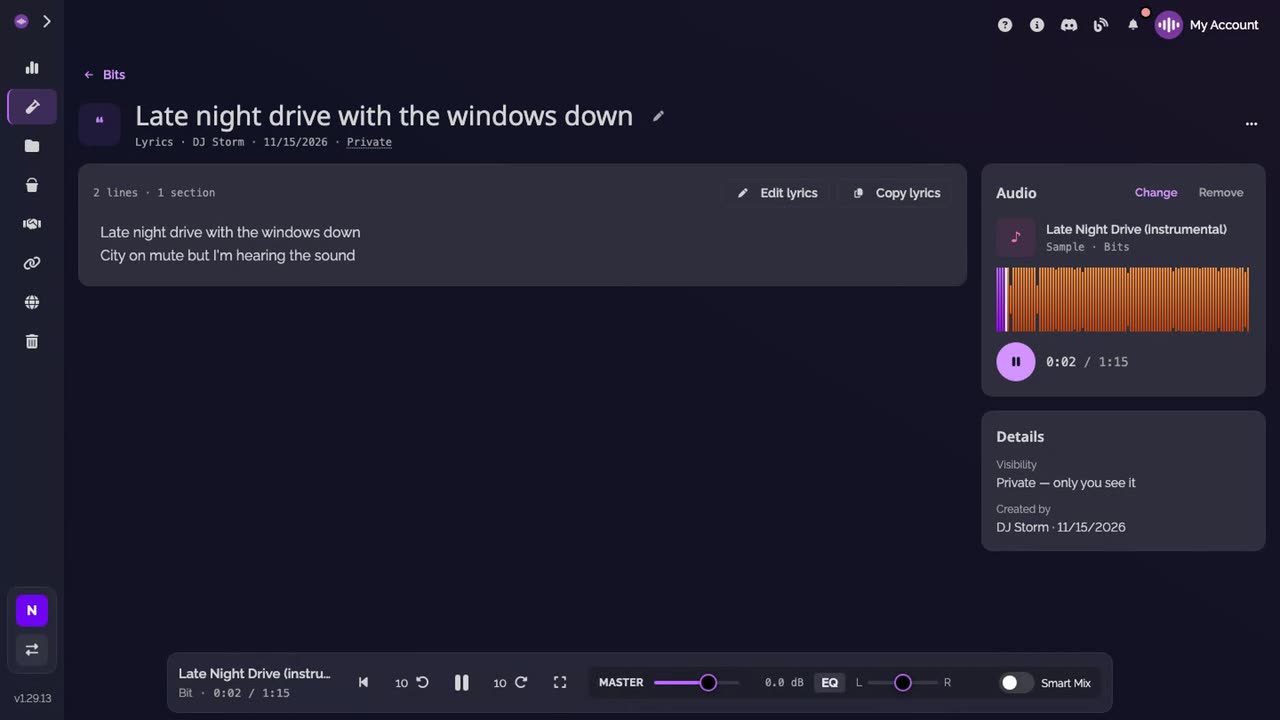
It plays beside your lyrics. The instrumental keeps playing, next to your words. Play and pause it from its card.
-
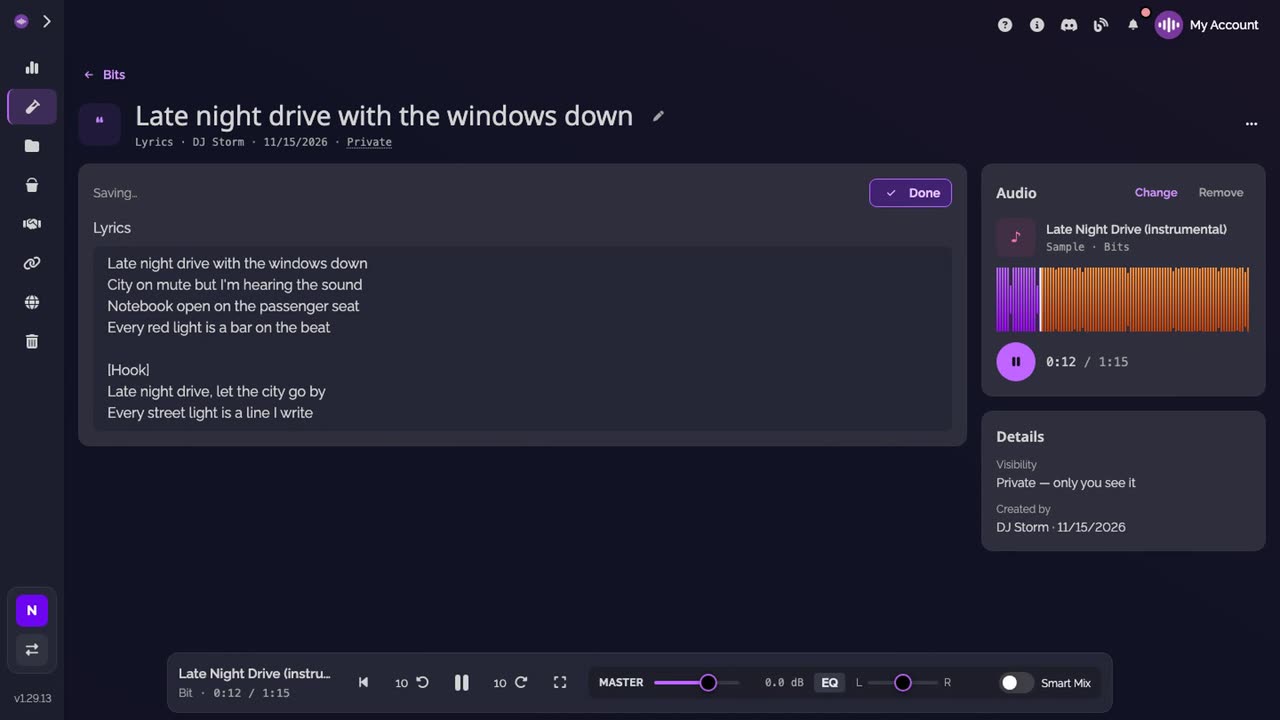
Write while it plays. Click Edit lyrics. Leave a blank line between two sections, and start a section with a line in brackets, like [Hook] or [Verse 2]: it becomes the section's title. Click Done to read it back.
-
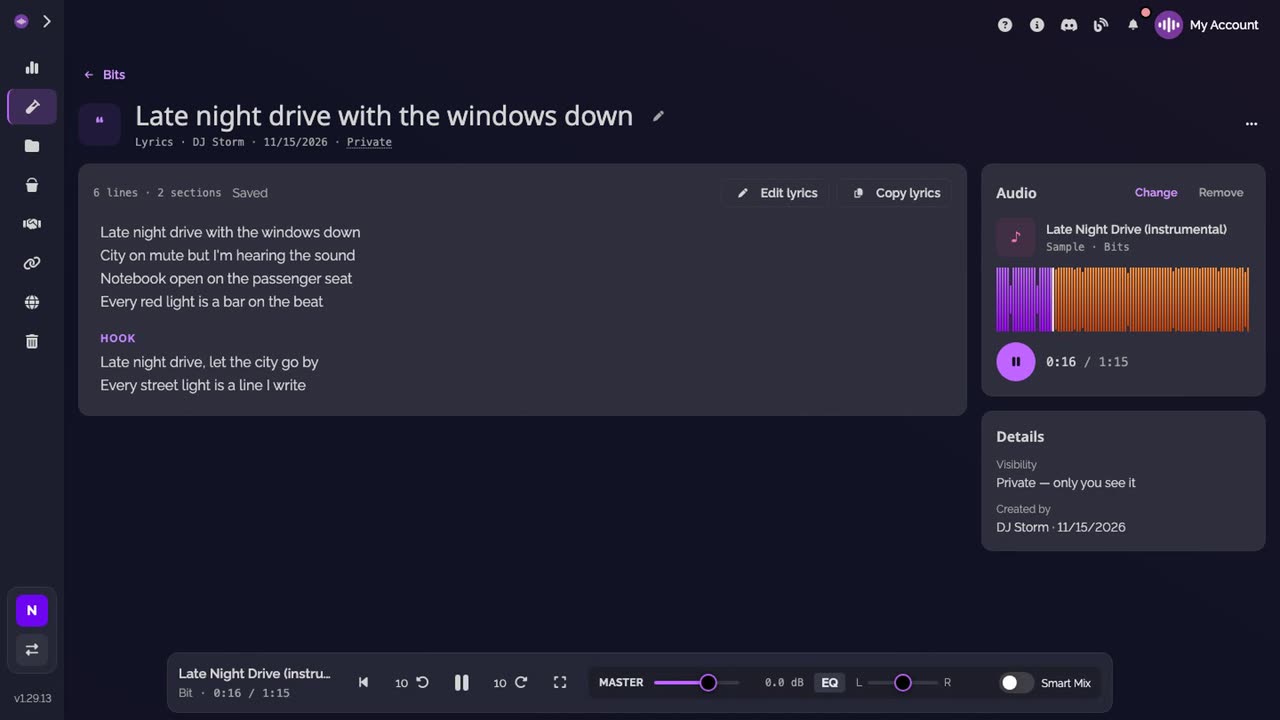
Count your lines. The card counts your lines and sections, here 6 lines and 2 sections, and shows Saved once your last words are in.
-
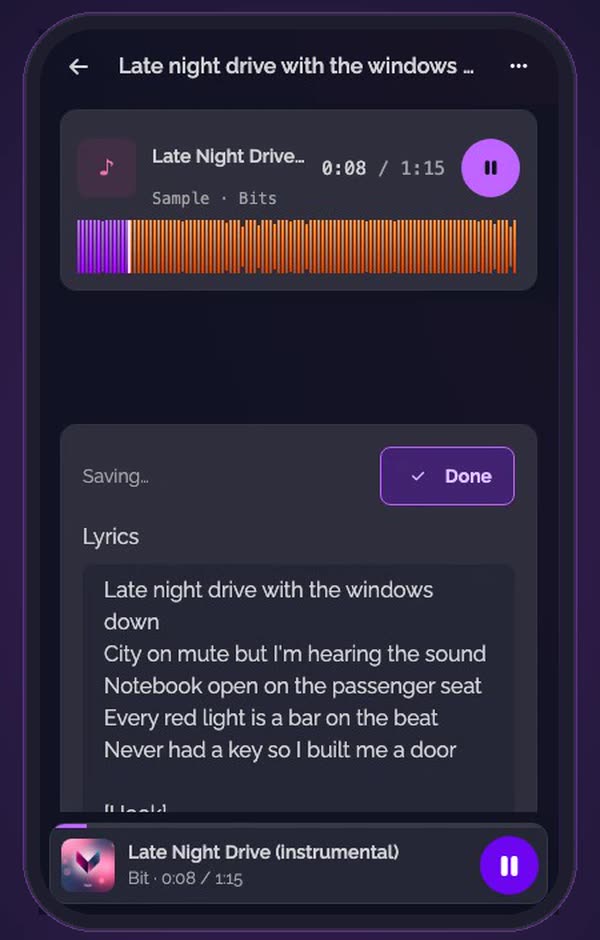
On your phone. Open the same bit and tap Edit lyrics: the instrumental stays pinned at the top while you type.
-
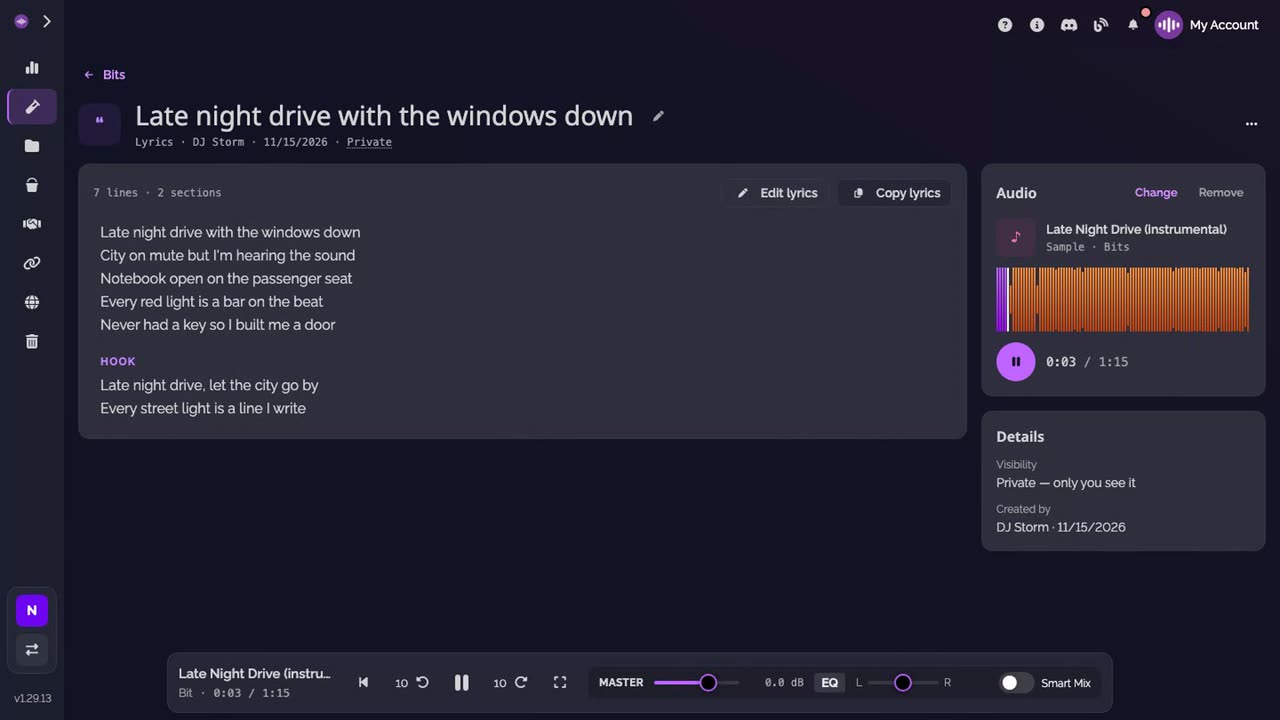
Ready for the booth. Click Copy lyrics to take them with you.
Good to know
- To write over the producer's track rather than a sample, ask them to invite you on that track: it then shows under Collaborations in the Link an audio window.
- Change swaps the instrumental and Remove takes it off. Your lyrics stay as they are.
- To share the lyrics with your workspace, click Private next to the bit's name.
- Once your verse is written, record a take over the track.
Transcript
Here's how to write your verse with the instrumental playing right next to your words. In the Bits section, add a new bit of Lyrics type. Write your first lines. The bit takes its name from the first one. Under Audio, search your samples and tracks, and play the instrumental to check it. Link it. The instrumental keeps playing, right next to your lyrics. Write while it plays. A line in brackets, like Hook, starts a new section. The card counts your lines and sections, and saves as you type. On your phone, the instrumental stays pinned at the top while you write. When it's ready, copy the lyrics for the booth. Your bit stays private until you share it with your workspace.
FAQ
Which audio can I write over?
A sample from your Bits, a version of one of your tracks, or a track your workspace is invited on, like the producer's track you are a guest on. For a track, you pick the version; its main version is chosen by default.
How do I get my instrumental into Bits?
In the Bits section, click New bit, pick Sample and drop the WAV or FLAC file.
Does the instrumental change when the producer uploads a new version?
No. The version you linked stays linked. Click Change to pick another one.
Who can read my lyrics?
Only you, until you share the bit with your workspace. Then every member of the workspace can read it.
What happens if the instrumental is deleted?
Your lyrics stay as they are. The bit says the audio is gone, and you can link another one.
Do I need to save?
No. The lyrics save as you type. If you close the tab before the last words are saved, the browser asks you first.