Test a sample with cues and loops
You hear a sample worth flipping: on YouTube, on Spotify, or in a file someone sent you. Keep it in Bits with a note on why, mark the parts that matter with cues, and loop one to hear if it holds. No download, no DAW to open: you know before your next session.
What you need
Any plan · a link to the sample (YouTube, Vimeo, Spotify, SoundCloud) or the audio file (.wav, .flac)
Steps
-
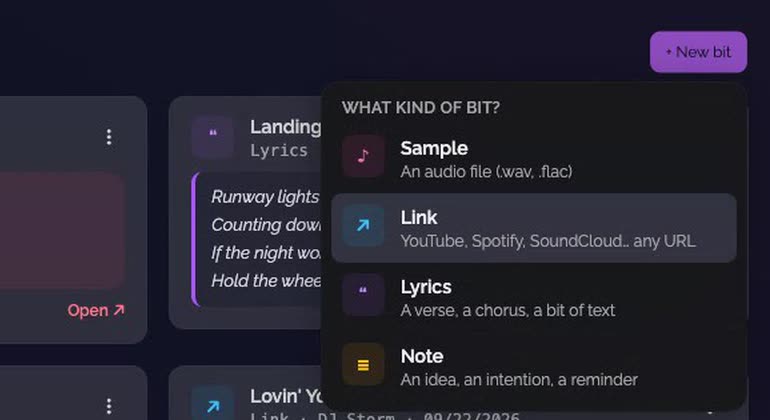
Add a Link bit. In the Bits section, click New bit, and pick Link.
-
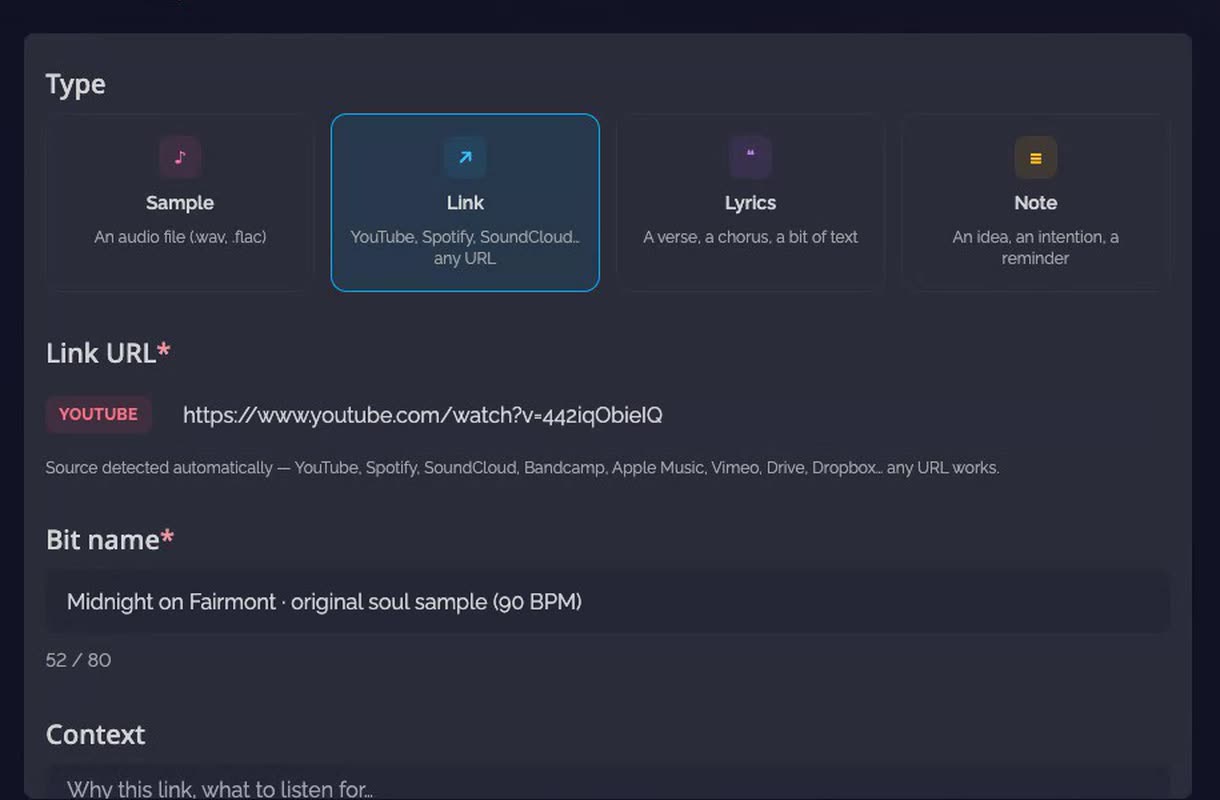
Paste the address. The source is detected, and the bit takes the video's title as its name.
-
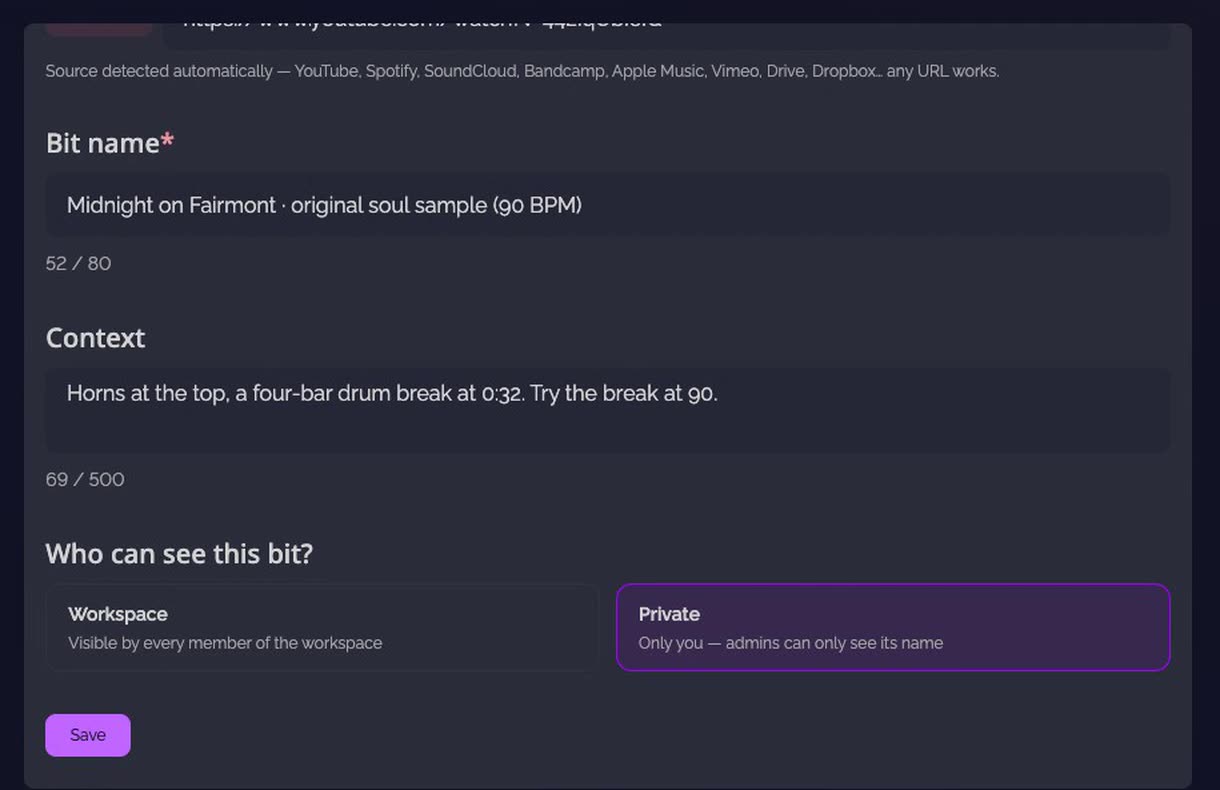
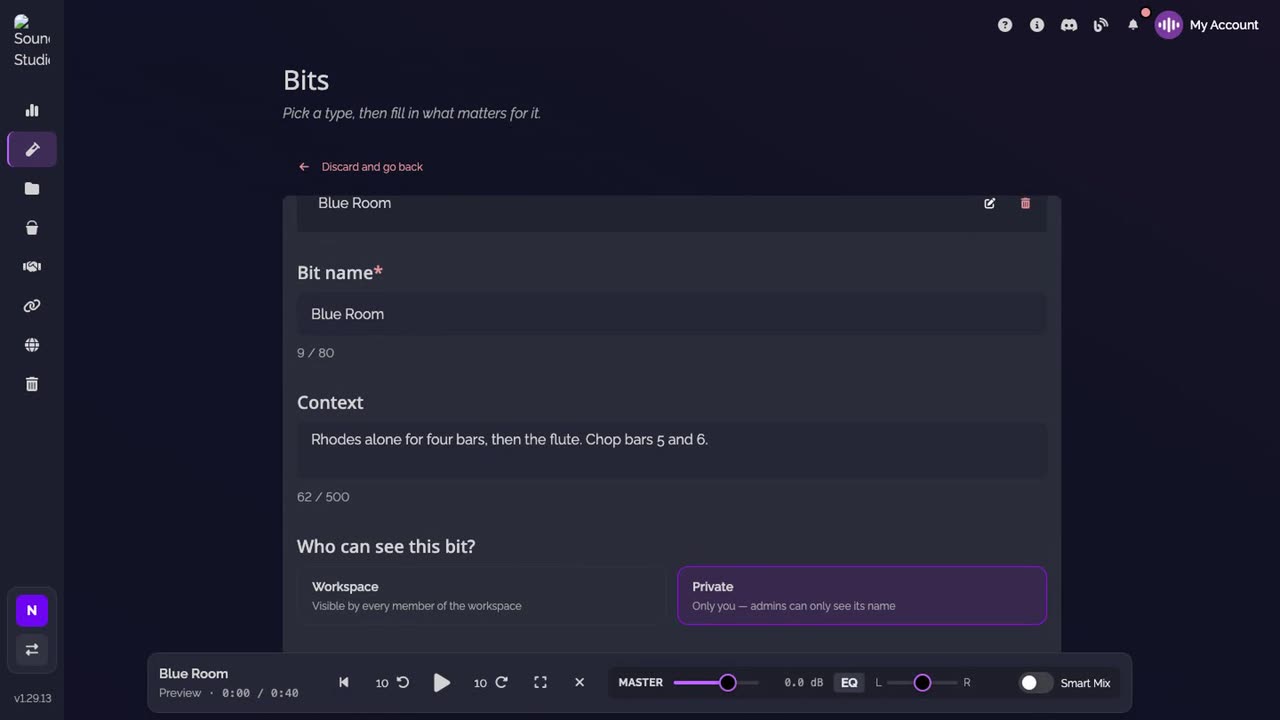
Note what caught your ear. In Context, a few words: where the good part is, what to try with it. The bit stays Private until you share it. Click Save.
-
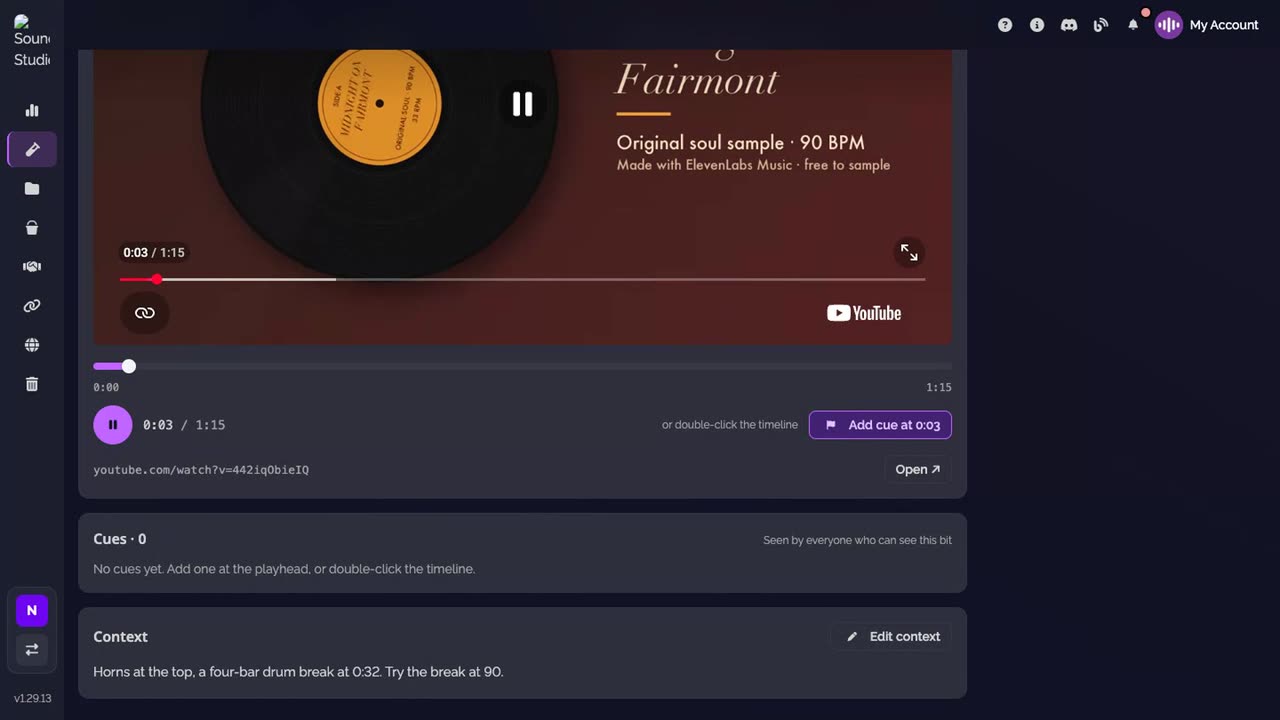
Play it in the bit. Open the bit from Bits: the video plays right there, with a timeline under it.
-
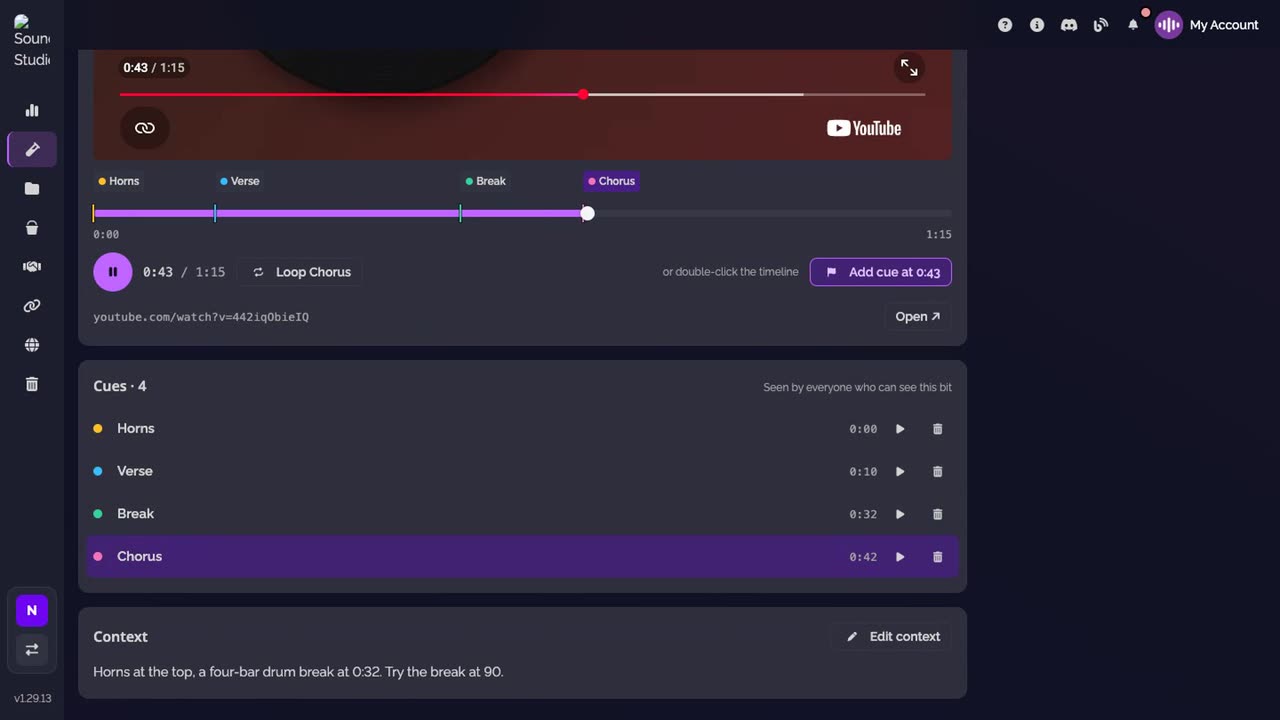
Mark the parts. Double-click the timeline where a part starts, and name it. Add cue at puts one where the video is.
-
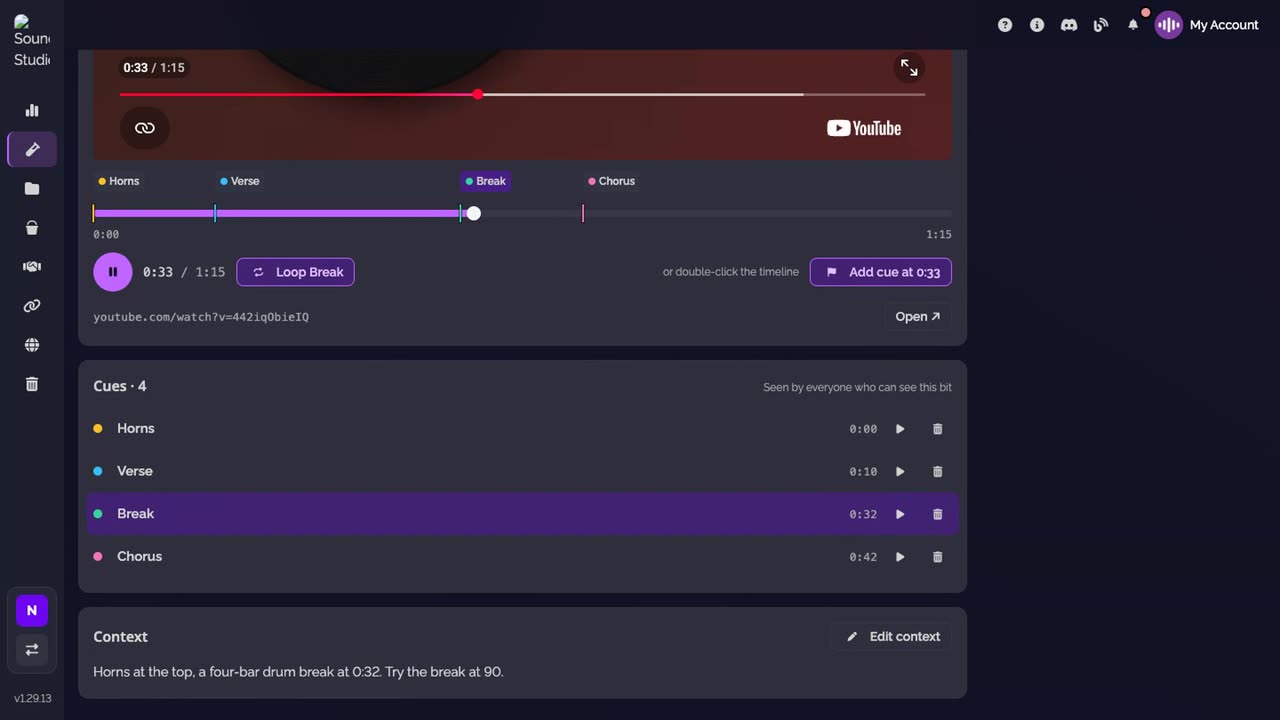
Loop one. Click ▶ on a cue to play from there, then Loop: the part between that cue and the next plays again and again.
-
A file works the same way. Click New bit, pick Sample, and drop the file. Add your context, and Save.
-
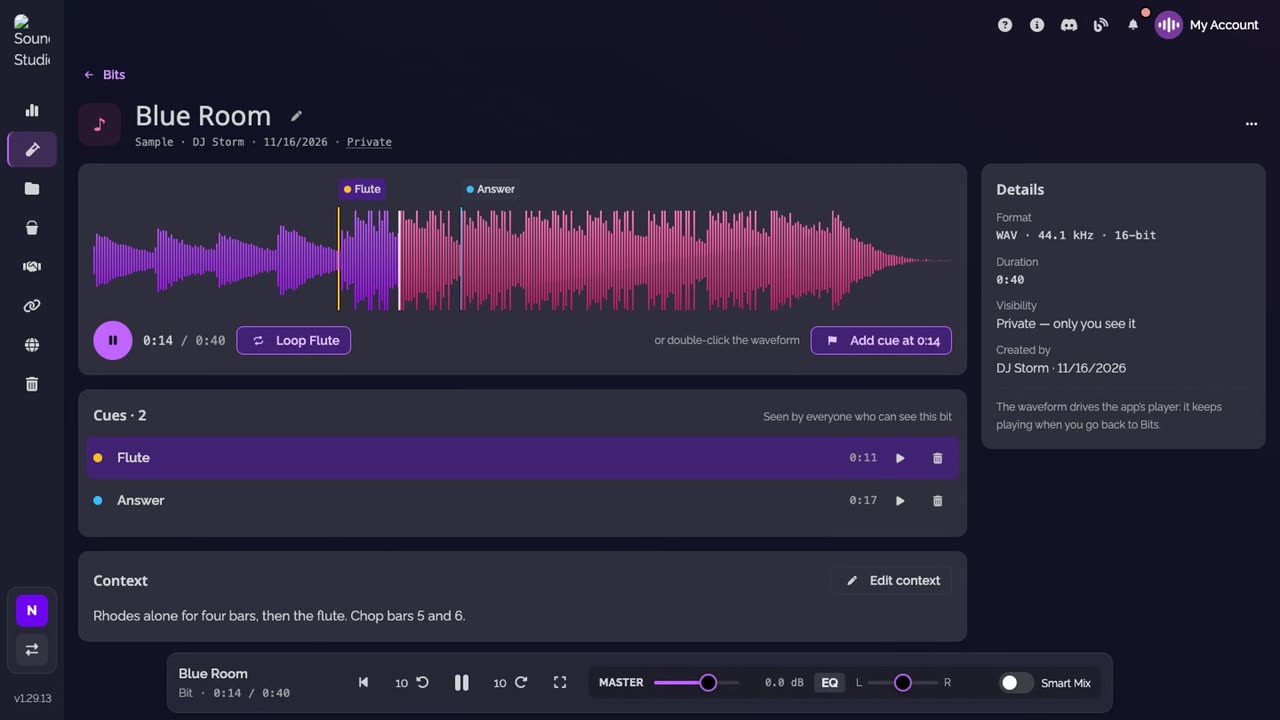
Loop two bars. On the waveform, double-click where the bars start and where they end, then play from the first cue and turn on Loop.
-
Back in Bits. Each card says how many cues it holds.

Good to know
- A cue is renamed in the list, and its bin deletes it. Only the bit's creator does either.
- On a phone or a tablet, touch and hold the timeline to add a cue.
- To write over a sample, link it to a Lyrics bit: Write your verse over the instrumental.
Transcript
Here's how to keep a sample you found, from YouTube or a file, and test it with cues and loops. Found a sample on YouTube? In the Bits section, add a new bit of Link type. Paste its address: the name fills in. Then note what caught your ear. Save it. The video plays right in the bit. Double-click the timeline where each part starts, and name it. Play from a cue, and turn on Loop. The break comes back around. Does it hold as a loop? A sample on your computer? Add a bit of Sample type, and drop the file. Mark the two bars you want, and loop them. Nothing to download, no DAW to open. Your samples wait in Bits, with your notes and your cues, for your next beat.
FAQ
Which links can I mark and loop?
A YouTube video, a Vimeo video, a Spotify track and a SoundCloud track play in the bit, with their cues and Loop. A playlist, an album or an Apple Music link plays in the bit, without cues.
Why does a Spotify track stop after 30 seconds?
Spotify plays a 30-second preview to whoever isn't signed in to Spotify in that browser. A cue past the preview is greyed out.
Who can add or change the cues?
The person who created the bit. Everyone who can see the bit sees its cues and plays from them.
How many cues can a bit hold?
Up to 50, each with a name of up to 60 characters.
Does the loop keep going when I leave the page?
No. Loop works while the bit's page is open. Back on Bits, a sample plays on without the loop.
Who sees my samples?
A new bit is Private. Only you see it, and the workspace's admins see its name. Switch it to Workspace and every member sees it, with its cues and its context.