Attach your DAW session to a version
The workfile of a version is the zipped session of your DAW: the project that produced this exact mix. Attach it to the version in SoundisiaK Studio and it stays next to the audio, so the right session is never lost or mixed up with another version's.
What you need
Any plan, the Free plan included · a version on the track · your DAW session zipped (.zip) · owner or admin of the workspace
Steps
-
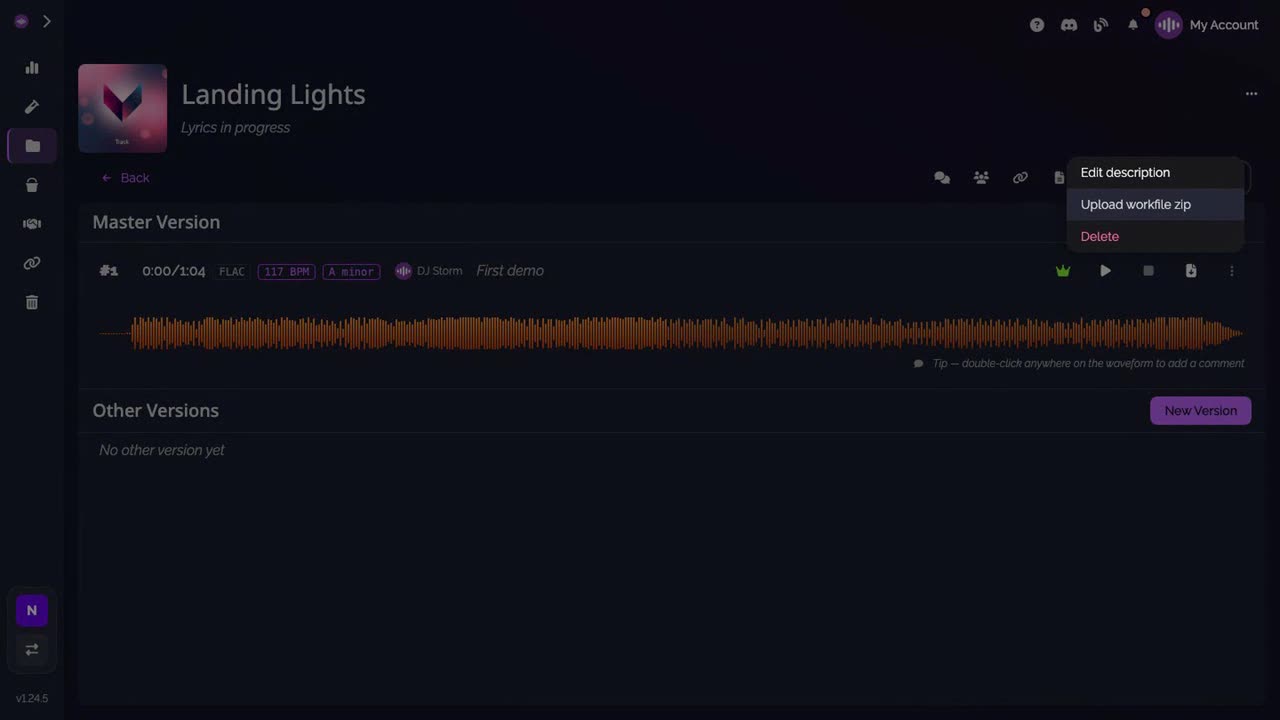
Open the version's menu. On the version's row, open its menu and choose Upload workfile zip.
-
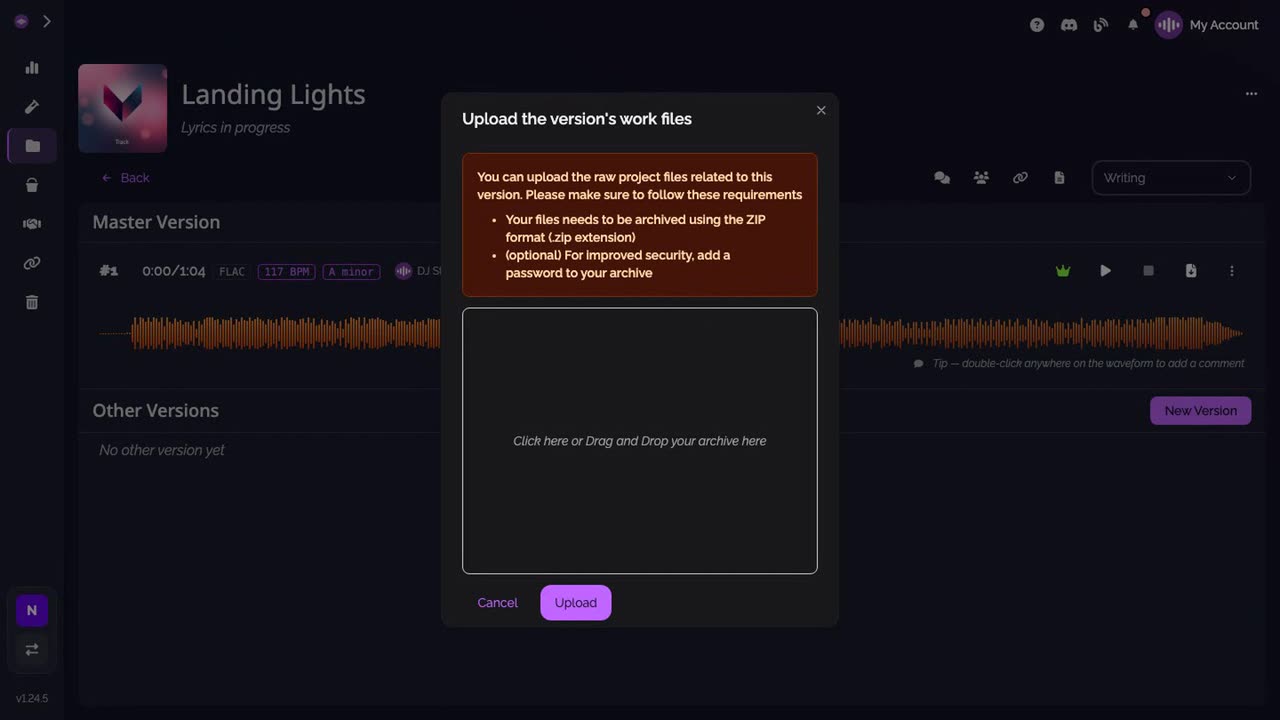
Upload the session zip. The window recalls the rules: the session must be a ZIP archive, and a password on the archive is optional but safer. Drop the zip, then click Upload.
-
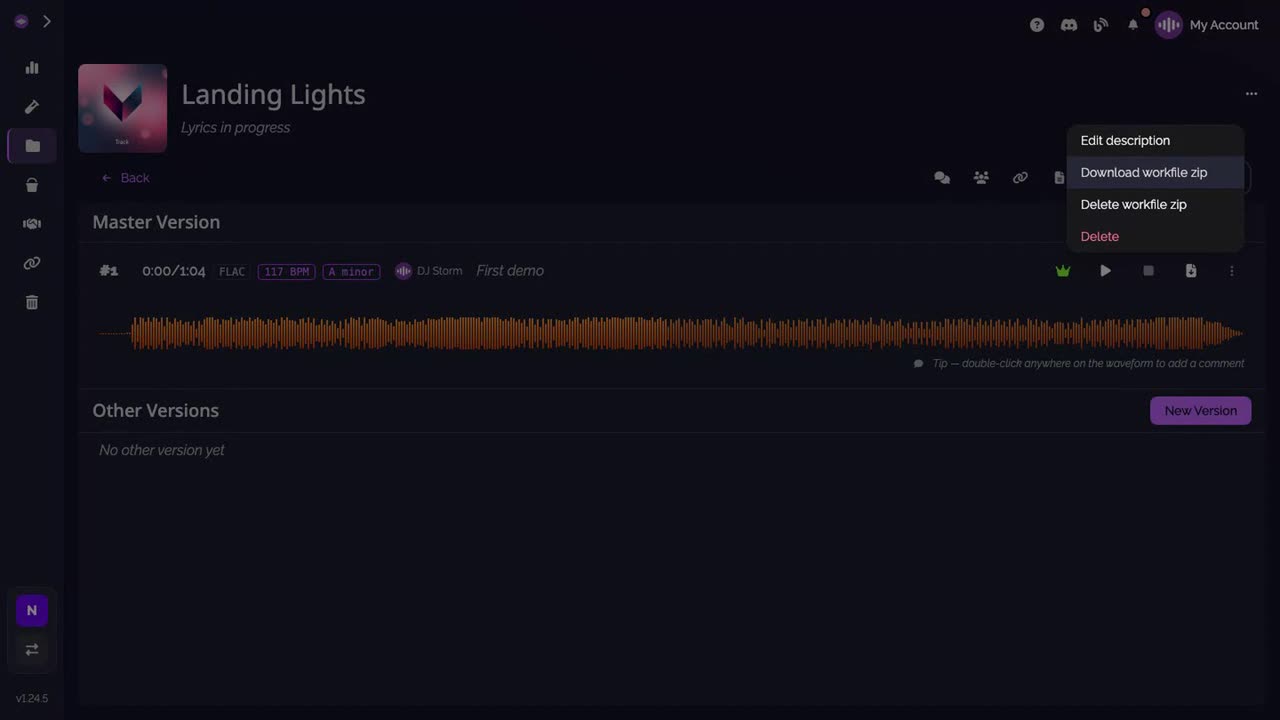
It's attached. The same menu now offers Download workfile zip, and Delete workfile zip.
Good to know
- One workfile per version: each version keeps the session that produced it. To replace it, delete it from the menu, then upload the new one.
Transcript
Here's how to attach your DAW session to a version, so it travels with the audio. On the version's row, open its menu, and choose Upload workfile zip. Zip your session first: Logic, Ableton, Pro Tools, any DAW. For more security, you can put a password on the archive. Drop the zip, and click Upload. The session is attached to this version. The same menu now offers Download workfile zip.
FAQ
Which DAWs are supported?
Any. SoundisiaK Studio stores the session as a ZIP archive, whatever the DAW that made it.
Can I protect the session?
The upload window suggests it: put a password on the ZIP archive before you upload it, and share the password separately.
How do I get the session back?
Open the version's menu and choose Download workfile zip. The same menu lets you delete it.