Create a new version and describe what changed
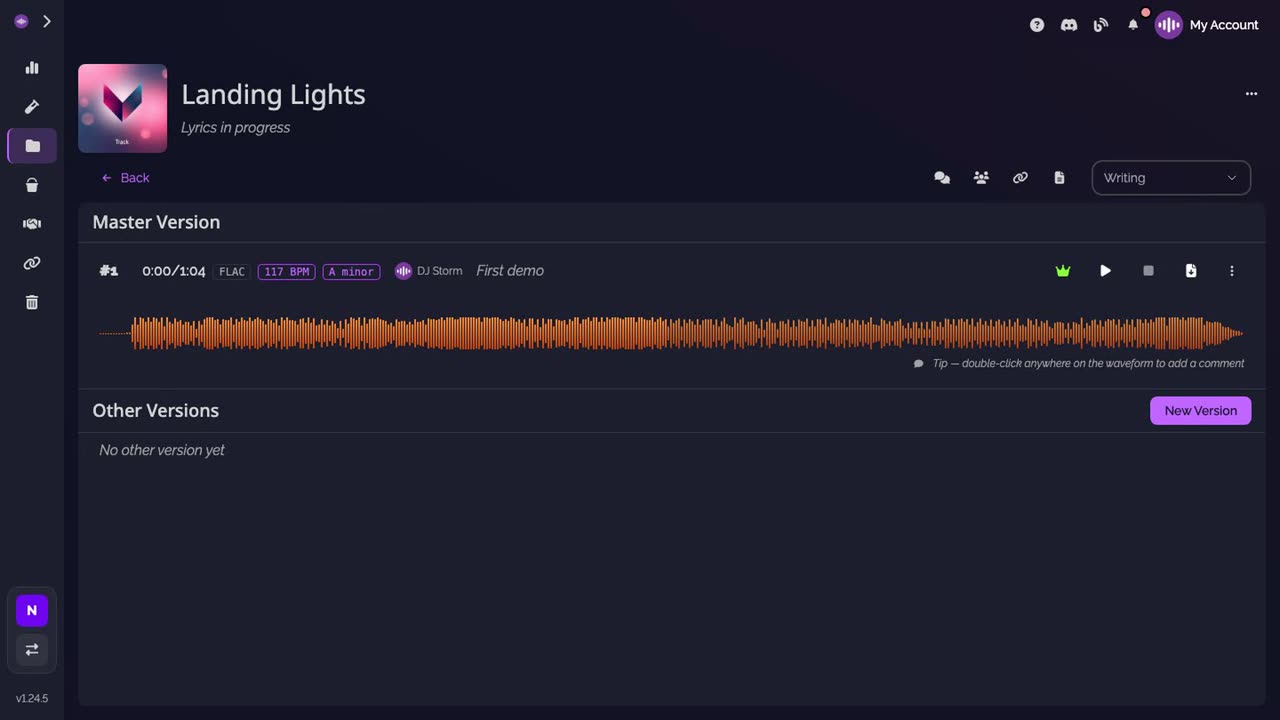
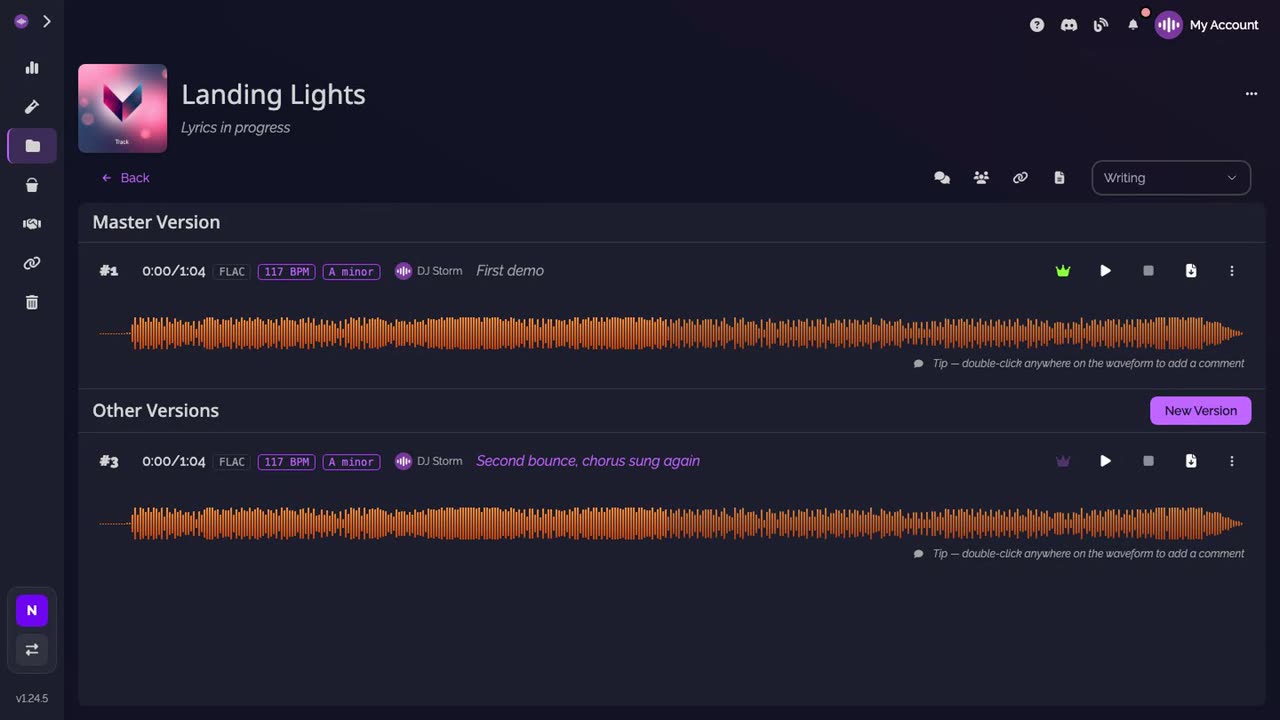
Every time you bounce a new mix, add it to the track as a new version: SoundisiaK Studio numbers it automatically, keeps your description of what changed, and lists it with the others. Once the audio is processed, the version shows its waveform, its key and its tempo.
What you need
Any plan, the Free plan included · a track · your mix as a WAV file
Steps
-
Click New Version. On the track page, the button sits next to Other Versions.
-
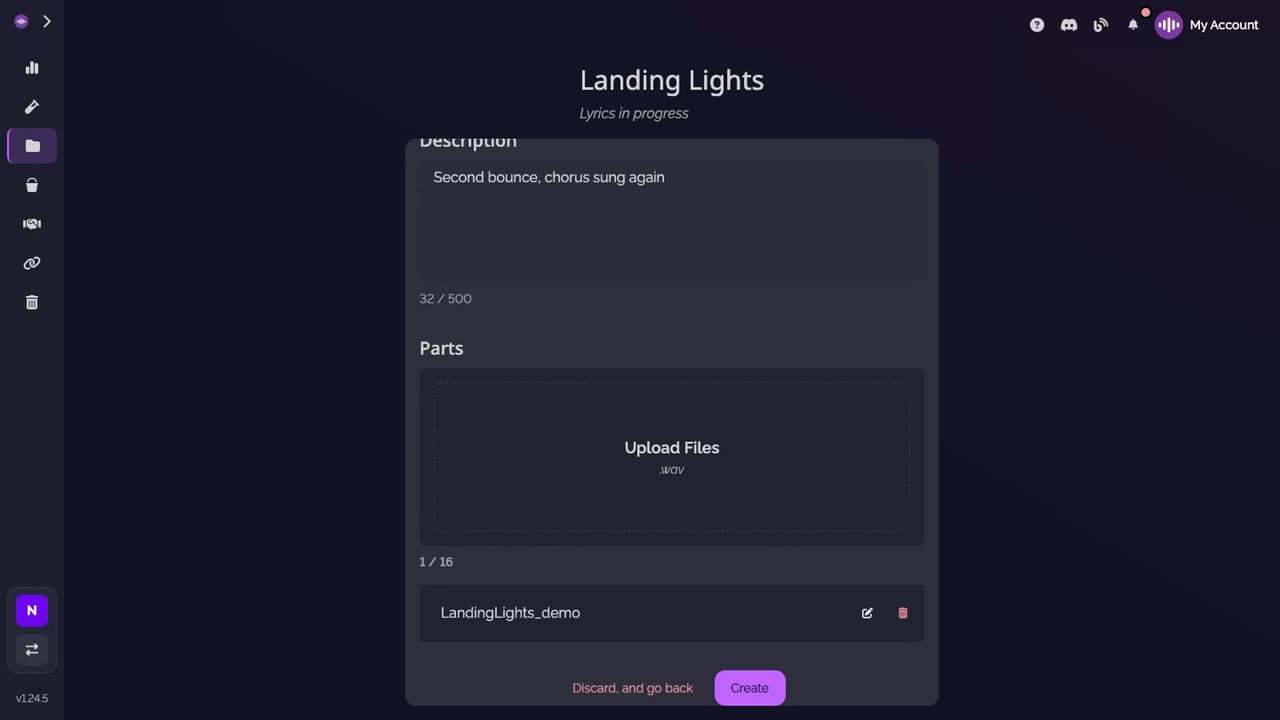
Drop the file, say what changed. Drop your audio file in the form, then describe what changed in this version.
-
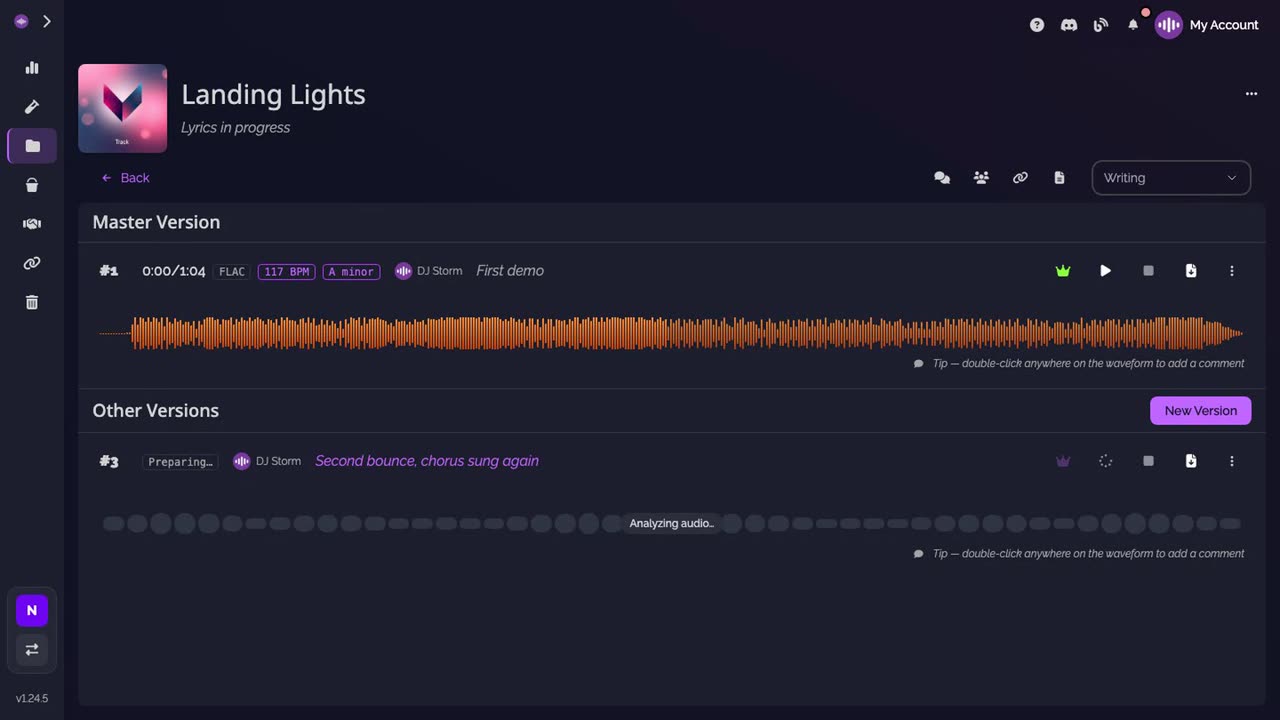
Click Create. The file uploads in full quality. Back on the track, the new version gets the next number, with your description, and reads Preparing… while the app processes the audio.
-
The new version is ready. It shows its waveform, its key and its tempo. To make it the main version, click its crown.
Good to know
- Version numbers only go up: a number is never reused, even after a version is deleted.
- Projects, tracks and versions are unlimited on every plan, the Free plan included.
- A version can hold several files: drop all the stems of a mix at once to get a multitrack version.
Transcript
Here's how to add a new version to a track, and say what changed in it. On the track, click New Version. Drop your audio file, and describe what changed in this version. Click Create. The file uploads in full quality. The new version gets the next number, with your description. The app prepares the audio for a moment. When it's ready, the version shows its waveform, its key and its tempo. To make it the main version, click its crown. Every version keeps its number and its description, so everyone knows what changed.
FAQ
Does a new version become the main version?
Not if a main version was chosen on the track; the new one is listed under Other Versions, and you make it the main one with its crown. On a track where nobody chose a main version yet, the newest version is shown as the main one.
What happens while a version says Preparing?
The app processes the audio you uploaded (the waveform, the formats to stream, the key and the tempo). It can take a few minutes, longer for a version with many stems.
Can I change the description later?
Yes. The version's menu has Edit description.