Fill the release metadata and export the distributor sheet
In SoundisiaK Studio, a project is a release. Its metadata (release date, UPC, genre, rights) is typed once, in the project's Metadata pane; each track carries its own ISRC, credits and splits. Verify & export checks what your distributor and your split sheet need, says what is missing, then gives you the distributor sheet: copy it, download it as XML, or print it as a PDF.
What you need
Any plan, the Free plan included · a project with its tracks
Steps
-
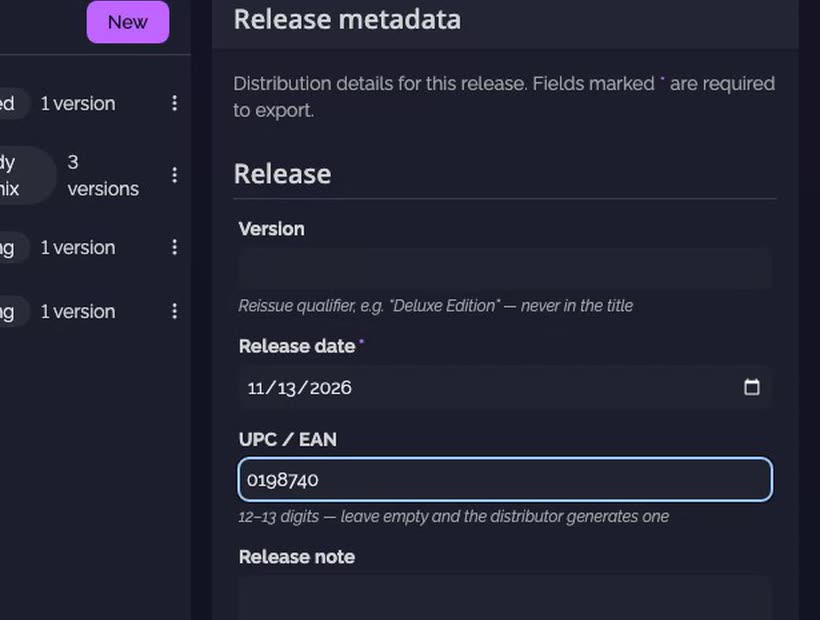
Fill the release metadata. Open the project, then Metadata. Type the release date, the UPC, the genre and the rights once, on the release.
-
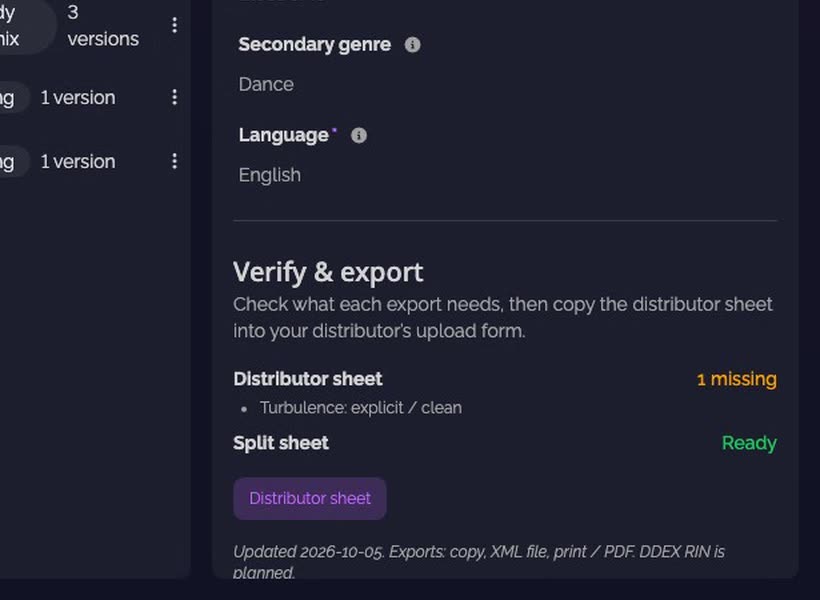
Check what's missing. Under Verify & export, the Distributor sheet and Split sheet checks say whether they are ready. Click a check to see what's missing, and on which track.
-
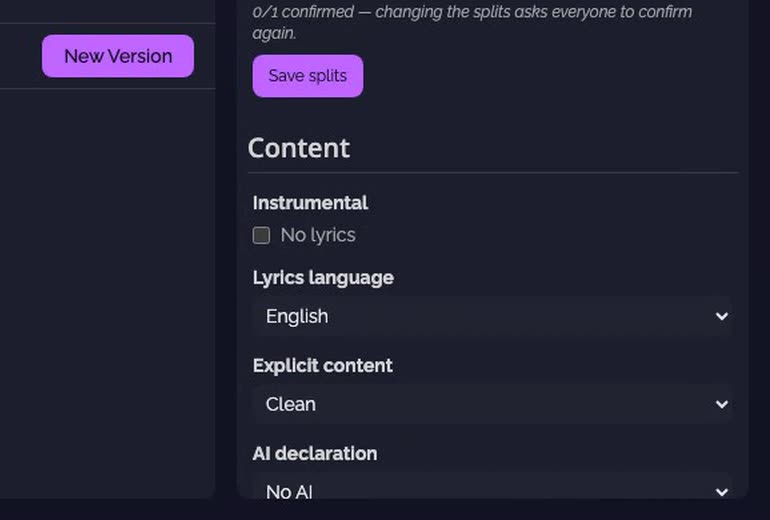
Fix it on the track. Open the track, then Metadata & Credits, fill the missing field, and save.
-
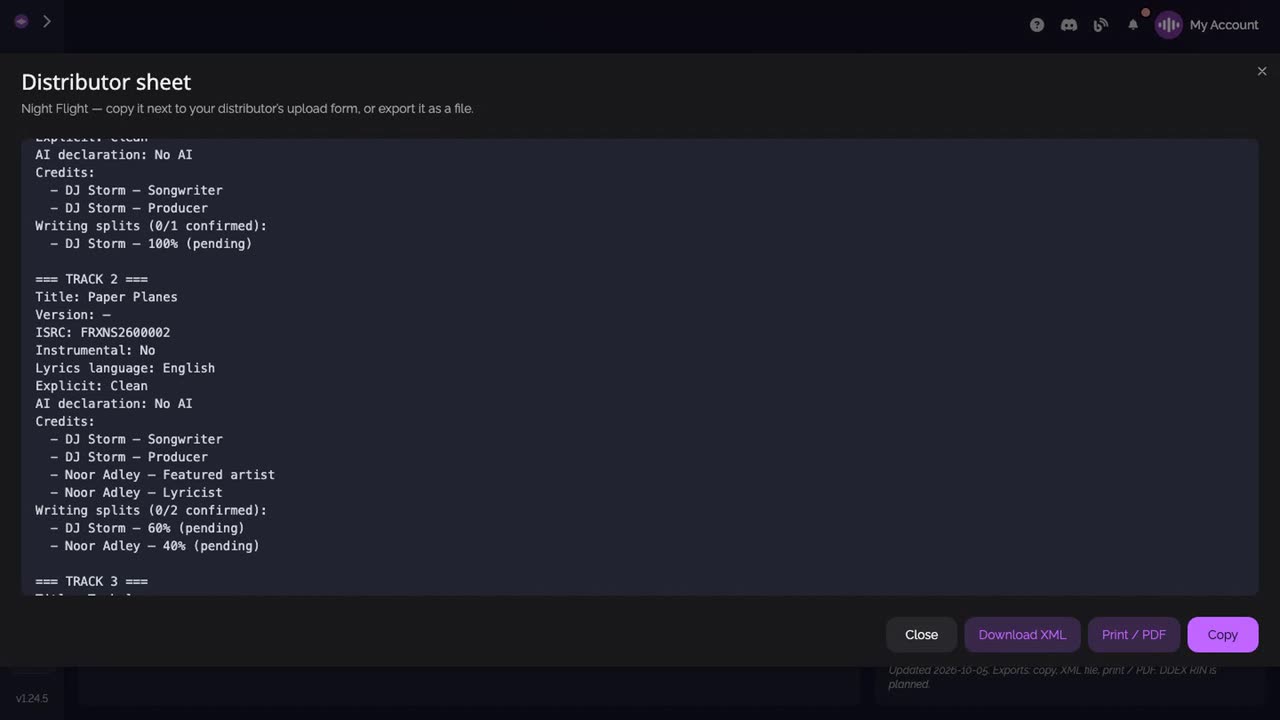
Export the sheet. Back on the project, both checks are green. Click Distributor sheet: the release, then every track with its ISRC, credits and splits. Copy it into your distributor's form, or Download XML, or Print / PDF.
Good to know
- The sheet uses the words distributors use (title, release date, UPC, genre, ℗ and ©), so you copy instead of retyping.
- Splits stay pending until every party has confirmed them; the sheet says how many are confirmed.
Transcript
Here's how to prepare a release for your distributor: its metadata, a check of what's missing, and the export. Open the project, then Metadata. The release date, UPC, genre and rights are typed once, on the release. Verify and export checks what your distributor will ask for, and what the split sheet needs. Click a check to see what's missing. Here, Turbulence needs its explicit or clean mention. Open the track's Metadata and Credits, set Explicit content, and save. Back on the release, both checks are green. The distributor sheet gathers the release, in the words distributors use. Then every track, with its ISRC, credits and splits. Copy it into your distributor's form. Or download the XML, or print it as a PDF. Nothing is typed twice.
FAQ
Where do I type the release information?
On the project, in its Metadata pane. A project is a release (Album, EP, Single, Mixtape or Other). Each track has its own Metadata and Credits pane for its ISRC, explicit content, credits and splits.
What does Verify and export check?
What your distributor sheet and your split sheet need. A check that is not ready says what is missing, and on which track.
In which formats can I export the distributor sheet?
Copy it as text into your distributor's upload form, download it as XML, or print it, or save it, as a PDF.
Does SoundisiaK Studio deliver my release to the stores?
No. SoundisiaK Studio is not a distributor. It prepares the sheet your distributor asks for.