Publish your Track Record, your public artist page
Your Track Record is the public page of your music, at an address of your own: artist.soundisiak.studio/@yourname. You choose what goes on it: an image and a few lines about you, the tracks of your releases, and the version of each that goes public. Visitors listen, they never download, and you see what gets played.
What you need
Any plan, the Free plan included (5 tracks; 20 on Crew, 50 on Studio) · at least one track with a single-file version · owner or admin of the workspace
Steps
-
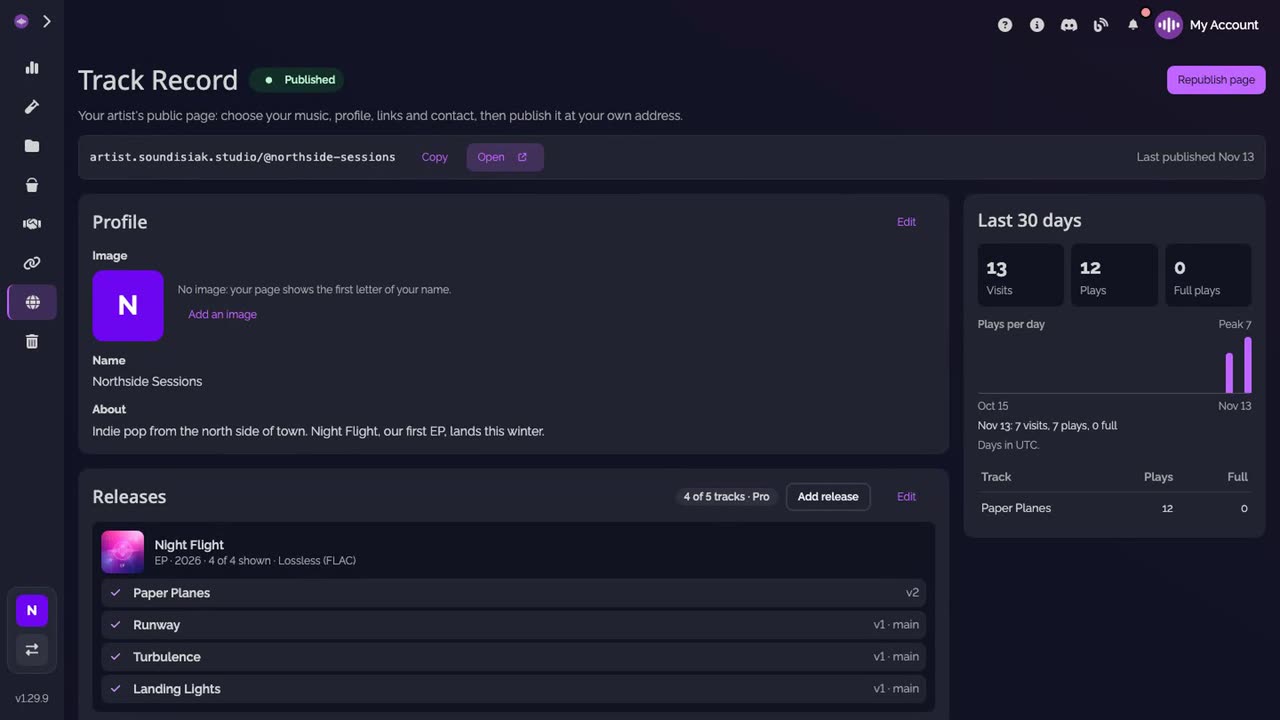
Open Track Record. In the side menu, click Track Record. The first time, you choose your address. Your page then has an address of its own: Copy it to share it, or Open it.
-
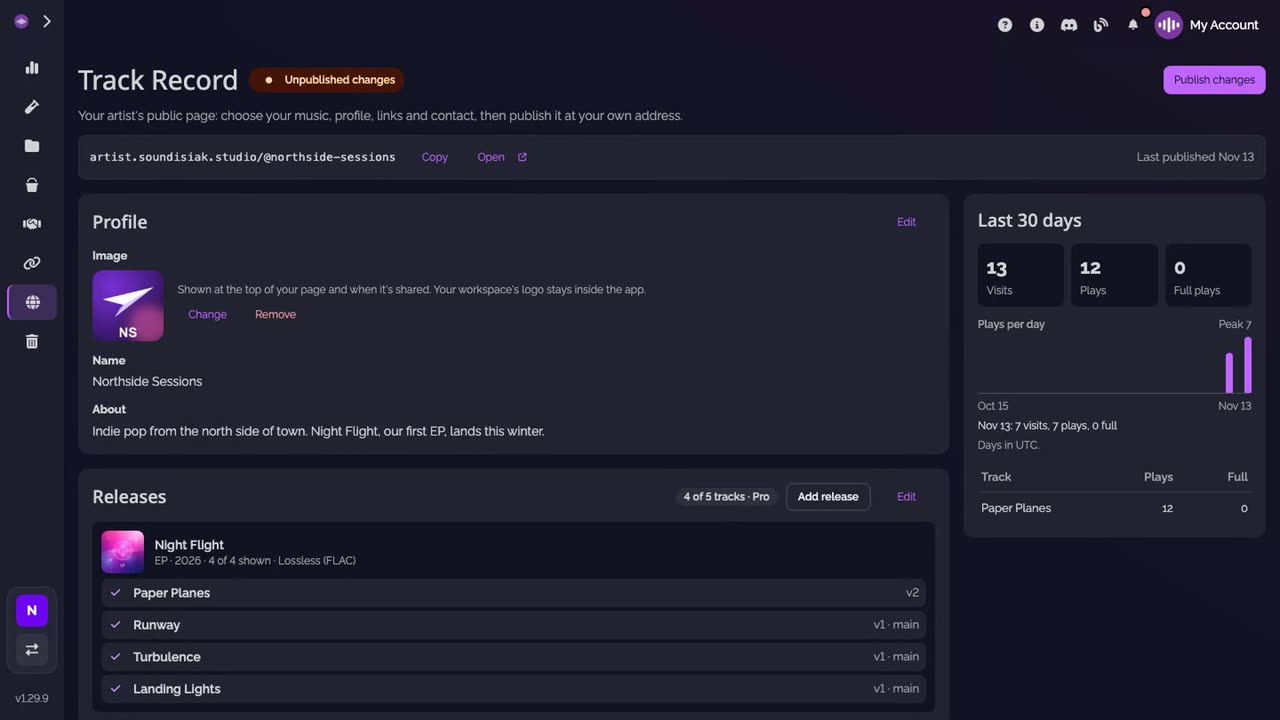
Add your image. Under Profile, click Add an image, pick a file, frame it, then Confirm and save. It shows at the top of your page and when it's shared. The name is your workspace's; write a few lines about you under About.
-
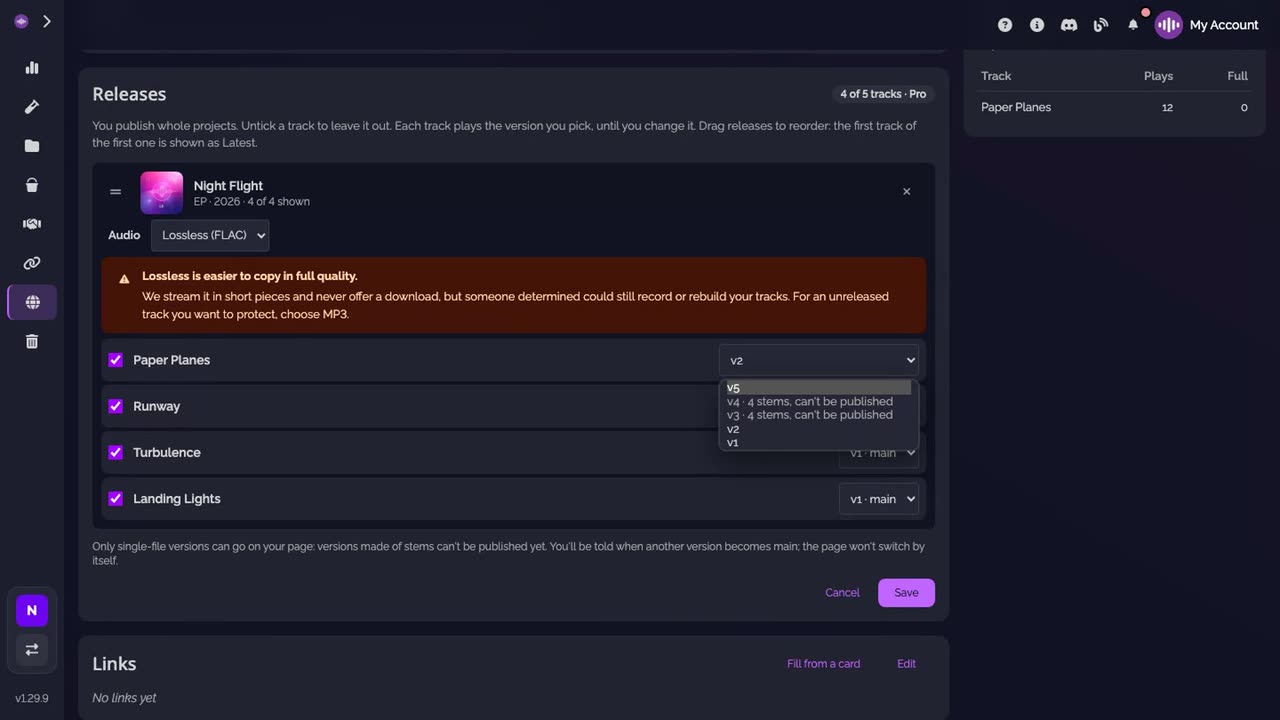
Choose what goes public. Under Releases, click Add release to add a project, or Edit to untick a track or to pick the version of each track that goes public. Click Save.
-
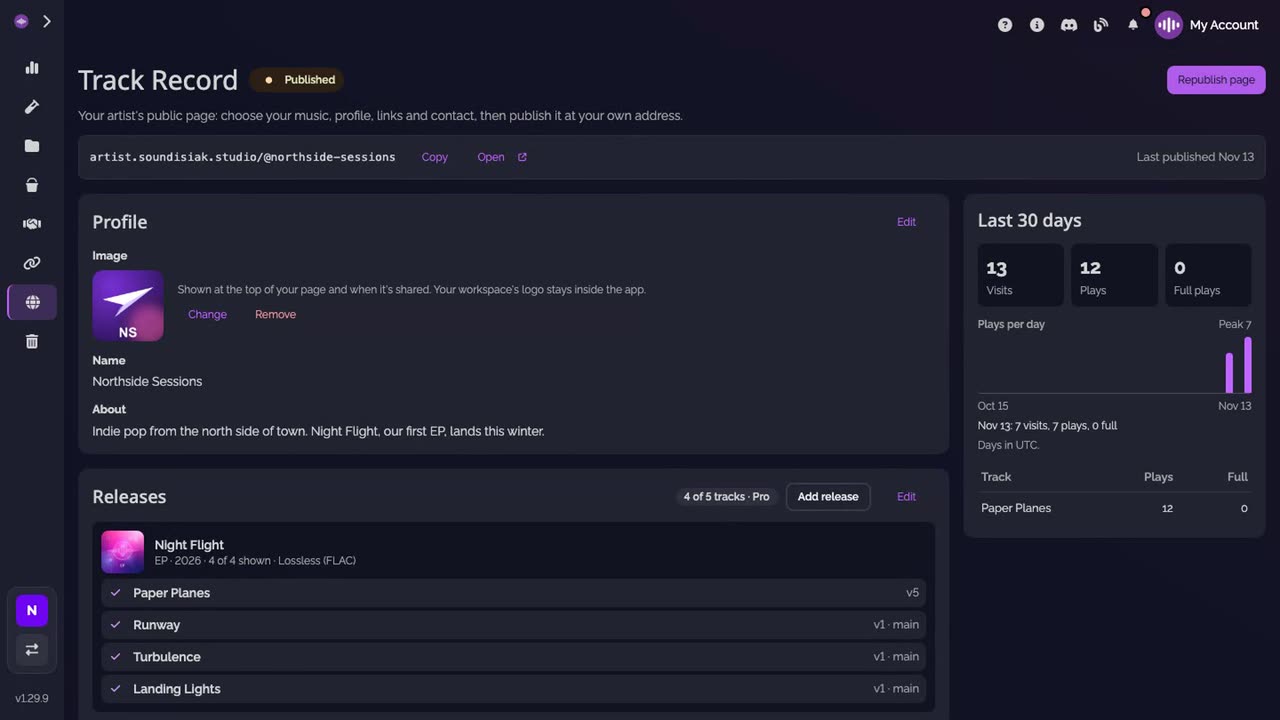
Publish your changes. Until you publish, the editor says Unpublished changes. Click Publish changes: the page online is updated, and the button now reads Republish page.
-
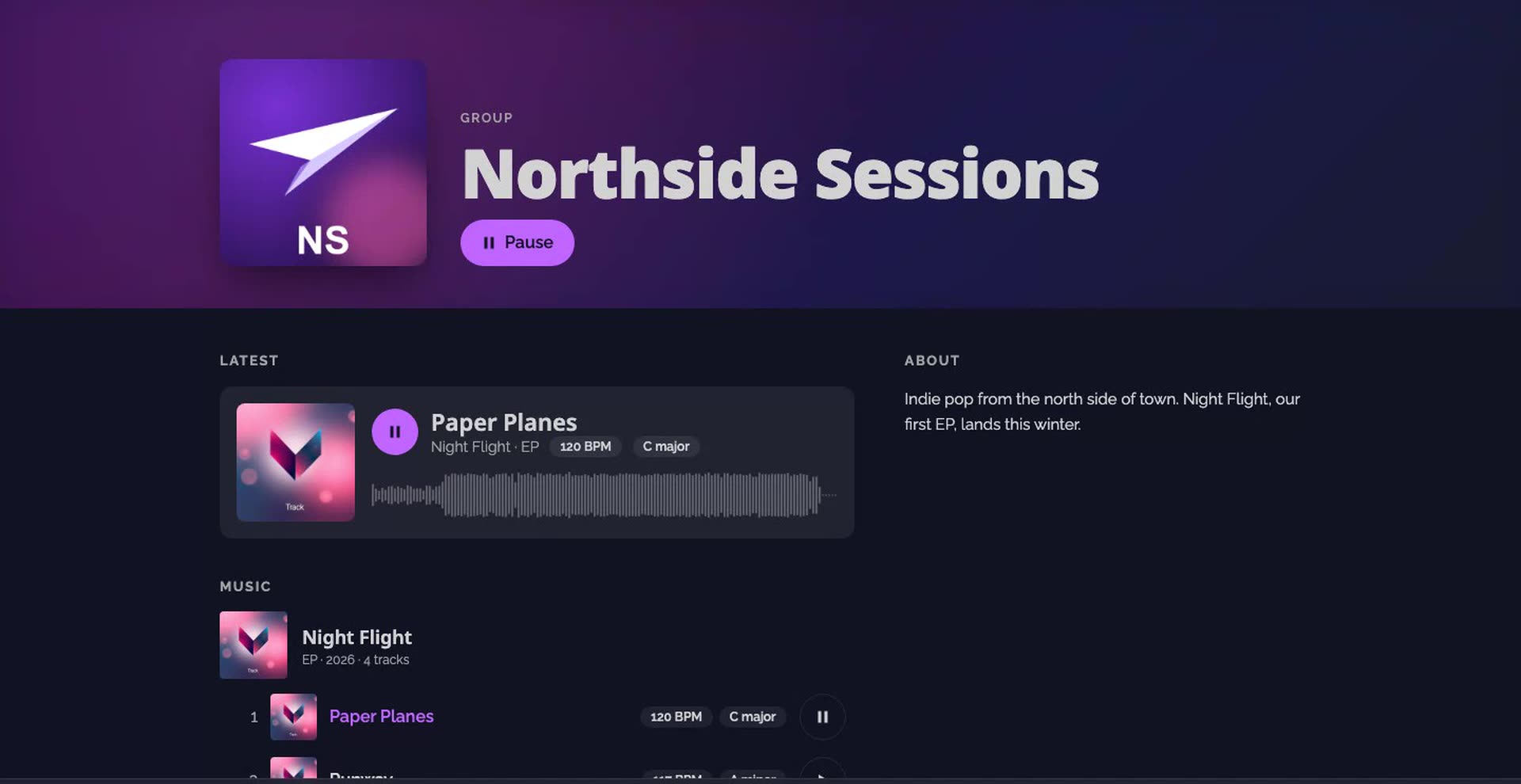
Your page, online. Your image, your music, listen-only: visitors play your tracks in full, with nothing to download.
-
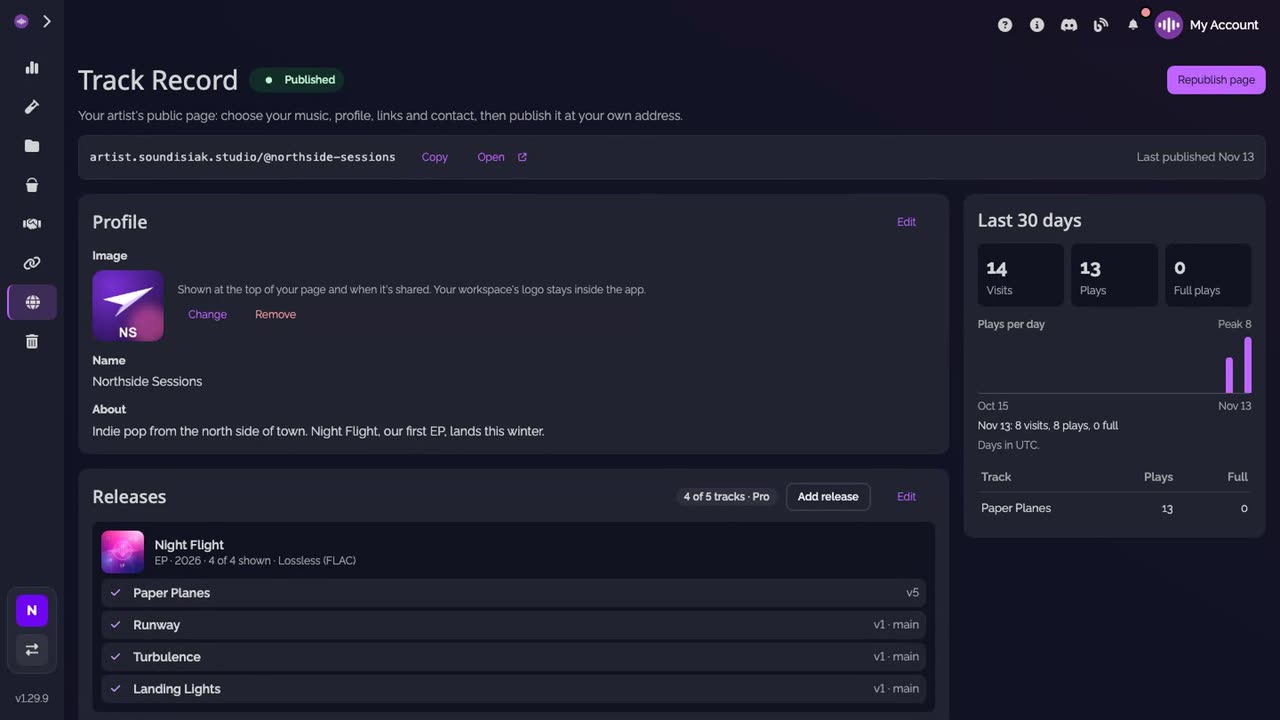
See what got played. Back in Track Record, Last 30 days shows the visits, the plays and the full plays, day by day and track by track.
Good to know
- Under Links and Contact, add your links (or fill them from a card) and a contact text or email: they show on the page once you publish.
- Each release plays in lossless by default. Under Releases, Edit, set a release to MP3, 128 kbps for the tracks you want to protect more.
- A track moved to the trash leaves the page, and a project deleted takes its tracks off it: the page is republished for you.
Transcript
Here's how to publish your Track Record, the public page of your music, at your own address. Open Track Record from the side menu. Your page has an address of its own. Copy it, or open it from here. Under Profile, add an image. Your name and a few lines about you go with it. Under Releases, choose the tracks to show, and the version of each that goes public. Then publish your changes. The page online is updated. Here it is: your image, your music, listen-only. Nothing to download. Back in Track Record, follow the visits, plays and full plays of the last thirty days. Track Record comes with every plan, the free one included.
FAQ
Which tracks can go on my Track Record?
The tracks of the projects you add under Releases, each with the version you pick. Only single-file versions can go public for now, not a version made of stems. Untick a track to leave it out.
Can visitors download my music?
No. The page is listen-only, with no download button and no excerpt mode, and the audio is streamed in short pieces to the page only. Someone determined could still record what they hear, so for an unreleased track you want to protect, set its release to MP3 rather than lossless.
How many tracks can I publish?
5 tracks on the Free plan, 20 on Crew and 50 on Studio.
Does my page show up on Google?
By default, search engines can find it. Under Settings, turn on Hide from search engines to keep it off them; anyone with the address can still open it.
Can I take my page offline?
Yes. Unpublish page, under Settings, takes it offline. Its address and its stats are kept, and Publish puts it back.